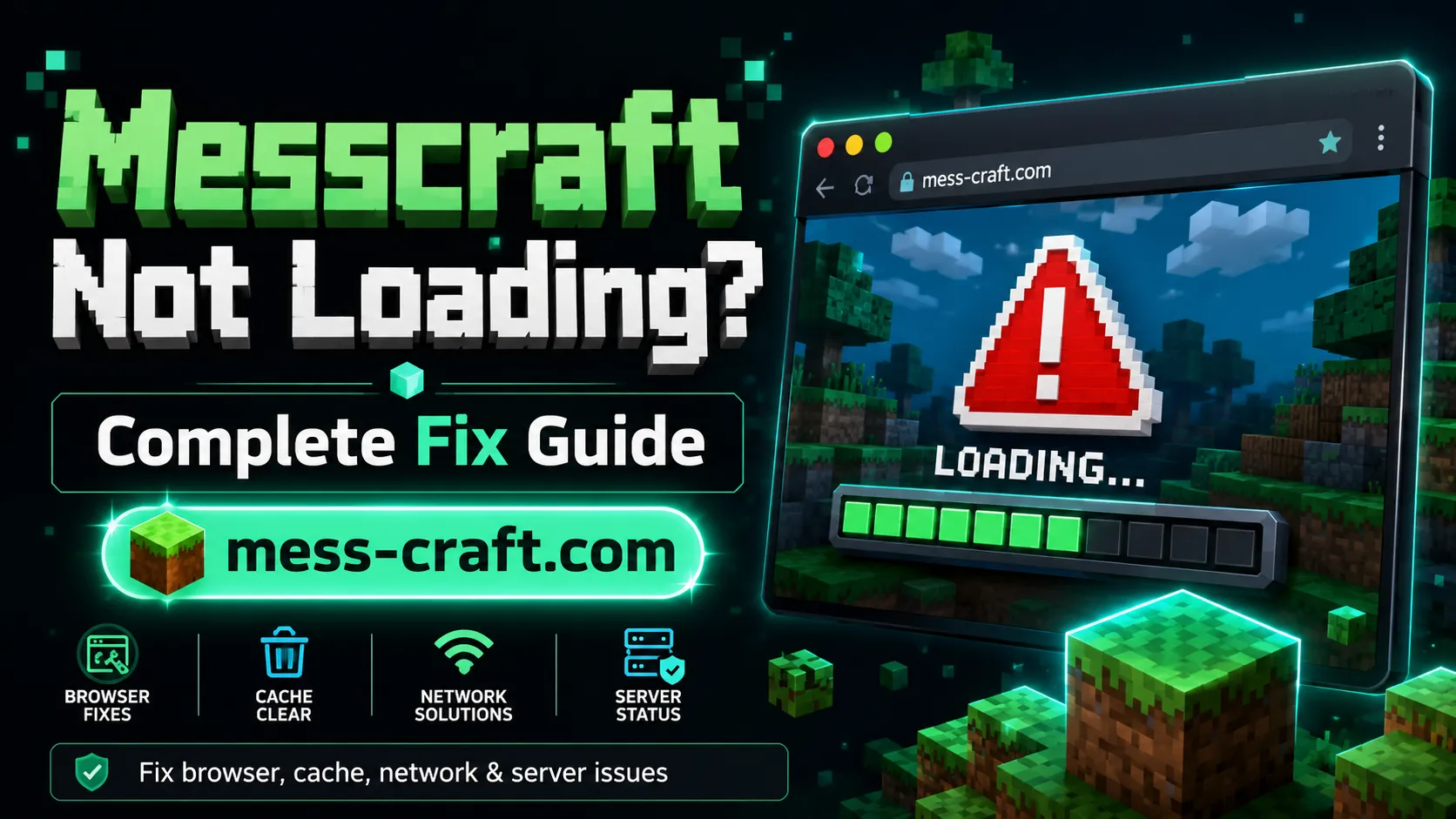
Messcraft Not Loading? Complete Fix Guide
Messcraft not loading usually comes down to one of four things: your browser, your internet connection, a blocked network, or the Messcraft server itself. The good news is that most loading problems are simple to fix once you know where to look.
MessCraft is commonly offered as a browser-based way to play Minecraft-style versions such as 1.5.2, 1.8.8, and 1.12.2 without installing a launcher, depending on the site or version being used. Because it runs in the browser, small issues like cached files, disabled permissions, extensions, or school filters can stop it from opening properly.
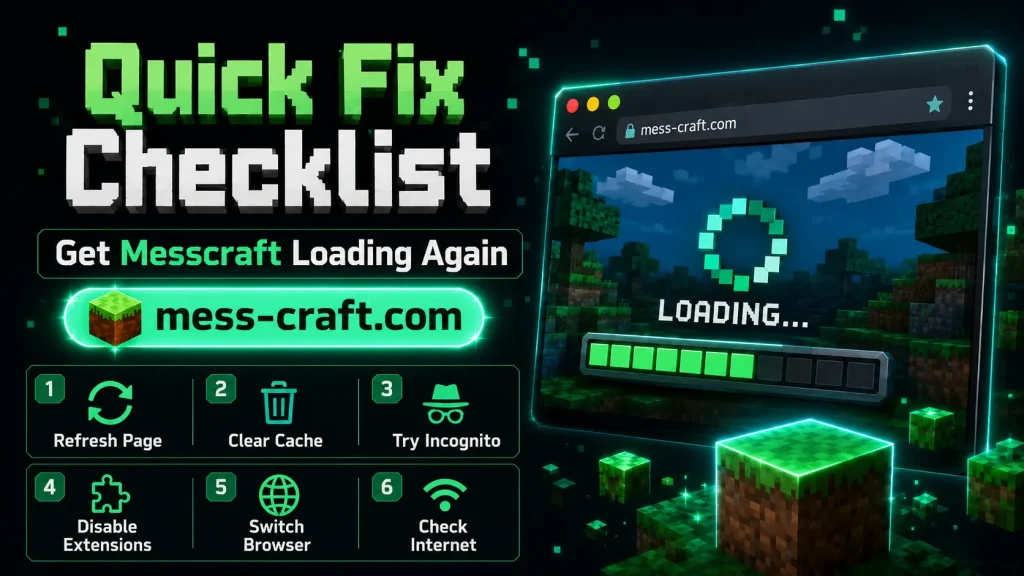
Use this Messcraft Not Loading? Complete Fix Guide step by step. Start with the quick fixes, then move into deeper checks only if the game still refuses to load.
Messcraft Not Loading? Complete Fix Guide: Start Here
Before changing advanced settings, do these quick checks:
- Refresh the page once
- Close extra tabs
- Restart your browser
- Try another Messcraft version if available
- Switch from Wi-Fi to mobile hotspot, or vice versa
- Open Messcraft in another browser
If the game loads in another browser, your original browser is the problem. If it does not load anywhere, the issue is more likely your network, device, or the Messcraft site/server.
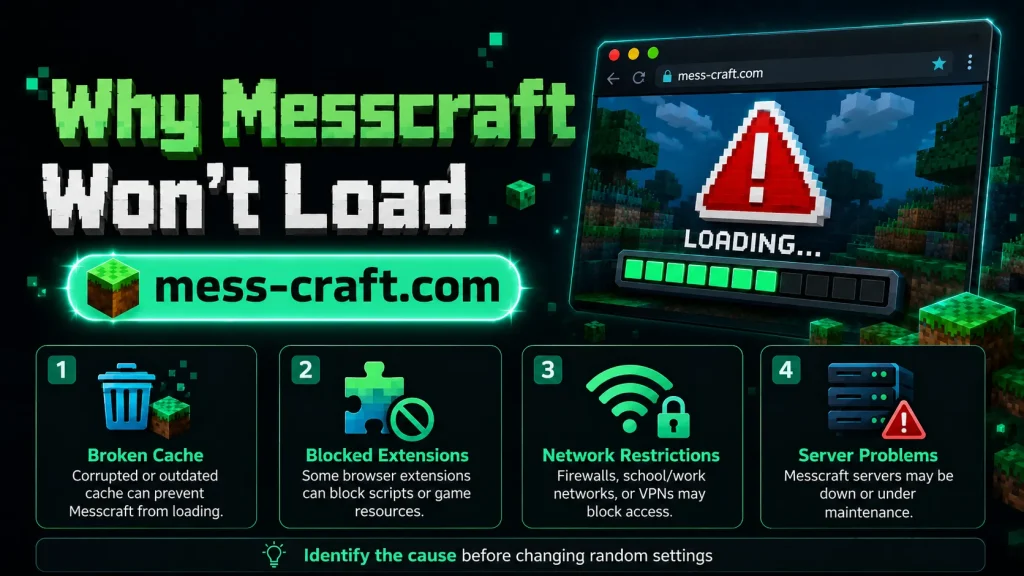
Common Reasons Messcraft Won’t Load
1. Browser Cache Is Broken or Outdated
Browser games store temporary files so they can load faster next time. Sometimes those saved files become outdated or corrupted. When that happens, Messcraft may freeze, show a black screen, or get stuck while loading.
2. Extensions Are Blocking Game Files
Ad blockers, privacy tools, script blockers, VPN extensions, and school safety extensions can block game scripts or multiplayer connections. Messcraft depends on browser-loaded files, so one blocked script can break the whole page.
3. Your Network Is Blocking Messcraft
Many school, work, and public Wi-Fi networks block browser games, game servers, WebSocket traffic, or unofficial Minecraft-style websites. Some MessCraft-related sites also describe the game as browser-based and multiplayer-capable, which means network restrictions can affect loading or server joining.
4. The Server Is Down or Busy
If everyone is having trouble, the problem may not be on your side. Browser games can fail to load when hosting servers are offline, overloaded, or being updated.
5. Your Device Is Low on Memory
Messcraft can feel lightweight because it runs in a browser, but it still needs enough RAM and CPU power. Older Chromebooks, low-end laptops, and phones with many background apps may struggle.
Fix 1: Clear Cache and Site Data
This is one of the best first fixes.
On Chrome or Chromebook
- Open Messcraft.
- Click the lock or settings icon near the address bar.
- Open Site settings.
- Choose Clear data or Delete site data.
- Reload Messcraft.
You can also clear browser cache from Chrome settings:
Settings → Privacy and security → Delete browsing data → Cached images and files
Avoid clearing passwords unless you know what you are doing.
Fix 2: Try Incognito or Private Mode
Open Messcraft in an incognito/private window. This helps because most extensions are disabled by default, and the browser loads the page with fewer saved files.
If Messcraft works in incognito mode, the issue is probably:
- an extension
- old cookies
- cached files
- a browser setting

Go back to normal mode and disable extensions one by one until you find the blocker.
Fix 3: Disable Problem Extensions
The most common extension types that break browser games are:
- ad blockers
- privacy blockers
- script blockers
- VPN/proxy extensions
- antivirus browser add-ons
- school monitoring extensions
You do not have to remove them permanently. Just turn them off for testing, refresh Messcraft, and see if the game loads.
If it works after disabling an extension, add Messcraft to that extension’s allowlist if possible.
Fix 4: Switch Browser
Messcraft may work better in one browser than another. Try:
- Google Chrome
- Microsoft Edge
- Firefox
- Brave
For school Chromebooks, Chrome is usually the default option. If extensions are managed by an administrator, you may not be able to fully disable them.
Fix 5: Check JavaScript and WebGL
Browser-based games need JavaScript. Many 3D browser games also need WebGL, which lets the browser render graphics.
Enable JavaScript in Chrome
Go to:
Settings → Privacy and security → Site settings → JavaScript → Sites can use JavaScript
Check WebGL
Search for “WebGL test” in your browser and open a trusted test page. If WebGL is disabled or unavailable, update your browser and graphics drivers if your device allows it.
On managed school devices, graphics or browser features may be restricted.
Fix 6: Restart Your Device
A simple restart can clear memory and stop stuck browser processes. This is especially helpful if Messcraft loads halfway and freezes.
Before restarting, close:
- video streaming tabs
- other browser games
- heavy apps
- screen recorders
- unused downloads
Then reboot and open only Messcraft.
Fix 7: Try a Different Messcraft Version
Some MessCraft pages offer multiple versions, such as older and newer Minecraft-style builds. If one version is stuck, try another.
For example:
- If 1.8.8 does not load, try 1.5.2.
- If multiplayer does not work, test single-player.
- If one mirror is down, try the official or most reliable source you normally use.
Do not download random “fix” files from unknown websites. Messcraft is often played directly in the browser, so a download prompt from an unfamiliar page should be treated carefully.
Fix 8: Test Your Internet Connection
Messcraft may fail if your connection is unstable, even if other websites open.
Try this:
- Open another website.
- Play a short video.
- Switch Wi-Fi networks.
- Restart your router.
- Test with a mobile hotspot.
If Messcraft works on mobile data but not school Wi-Fi, the school network is probably blocking it.
Fix 9: Check Whether Messcraft Is Blocked
If you are on a school, office, or public network, Messcraft may be filtered. Signs include:
- page loads but game frame stays blank
- multiplayer never connects
- “connection refused” or “blocked” errors
- site works at home but not at school
- only some game versions load
In that case, there may not be a technical fix on your device. The network owner controls access.
Fix 10: Wait and Retry Later
If Messcraft was working earlier and suddenly stopped for everyone, the server may be offline. Browser game sites can go down temporarily because of hosting issues, updates, or heavy traffic.
Wait a few minutes, refresh, and try again. If you use a specific MessCraft server, check whether that server is online before changing your browser settings.
When Nothing Works
If none of the fixes help, narrow the problem down:
- Works on another device: your device or browser is the issue.
- Works on another network: your Wi-Fi is blocking it.
- Works in incognito: cache or extensions are the issue.
- Does not work anywhere: the site or server may be down.
- Only multiplayer fails: server connection or network filtering is likely.
This saves time and keeps you from changing random settings that are not related to the real problem.
Conclusion
Messcraft not loading is usually fixable with a clean browser session, cleared cache, disabled extensions, or a network change. Start with the simple steps first: refresh, try incognito, clear site data, and switch browsers. If the game still will not open, test another device or network to see whether the issue is local or server-side.
The fastest path is not guessing. It is isolating the problem one layer at a time.
FAQ Section
Why is Messcraft stuck on the loading screen?
It is usually caused by cached files, blocked scripts, weak internet, browser extensions, or a temporary server issue.
Does Messcraft need to be downloaded?
Many MessCraft versions are browser-based and do not require a traditional game launcher. Some third-party pages may differ, so be careful with unexpected downloads.
Why does Messcraft work at home but not at school?
Your school network may block browser games, multiplayer traffic, or specific Messcraft domains.
Which browser is best for Messcraft?
Chrome and Edge are good first choices. If one browser fails, test another before changing advanced settings.
Is Messcraft official Minecraft?
At least one MessCraft-related website states that it is independent and not affiliated with Mojang Studios or Microsoft.
Why does multiplayer not load?
Multiplayer can fail because of server downtime, blocked network ports, WebSocket restrictions, VPN issues, or school/work filters.