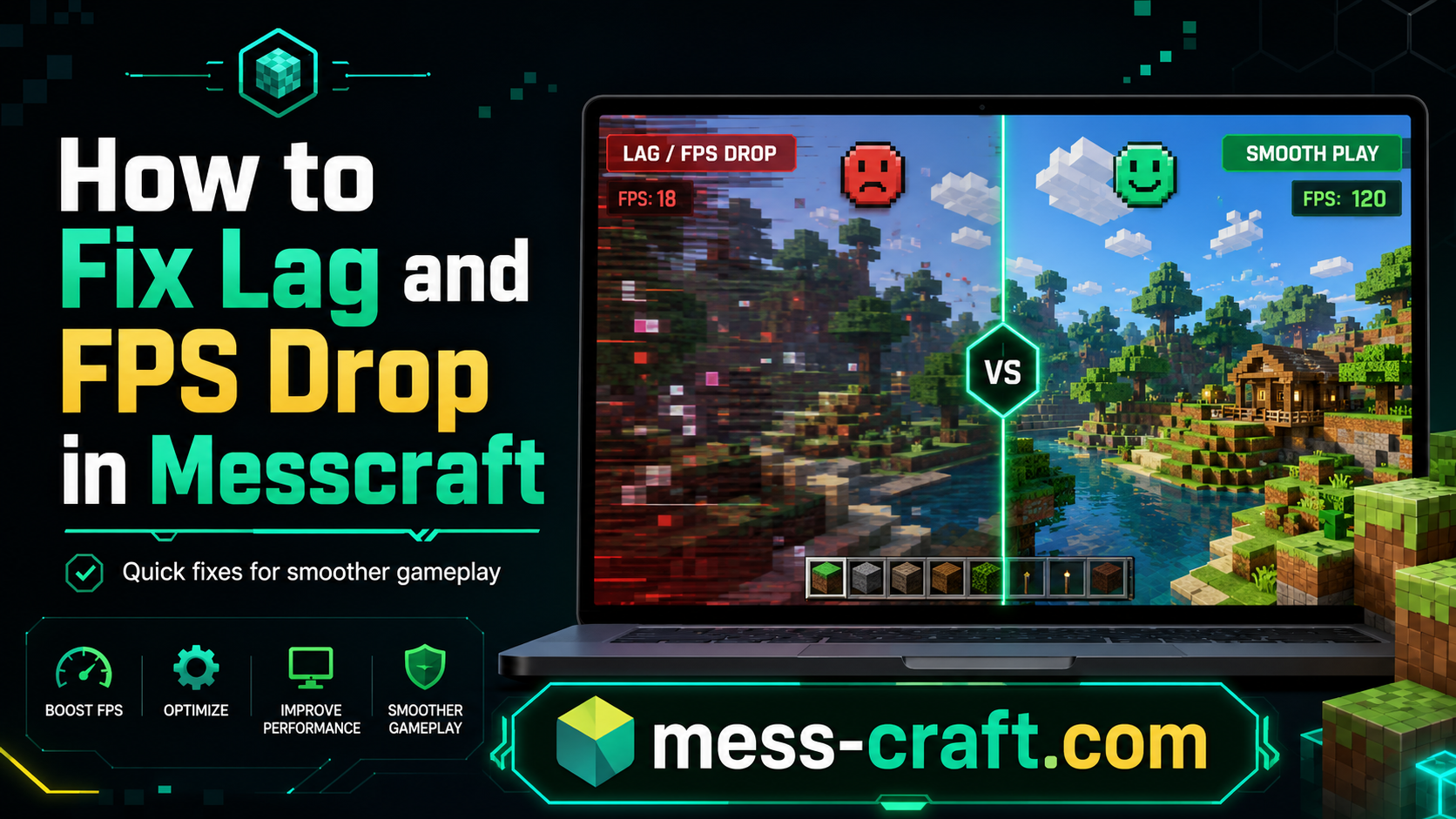
How to Fix Lag and FPS Drop in Messcraft
Lag in Messcraft can ruin the fun fast. One second you are building, mining, or fighting mobs; the next, your screen stutters, your clicks feel delayed, and your FPS drops hard.
Messcraft is a browser-based way to play Minecraft-style gameplay, with some versions offering Minecraft 1.5.2, 1.8.8, or 1.12.2 directly in a regular browser. The official MessCraft site says it supports singleplayer and multiplayer without extensions, including on Chromebooks. Because it runs inside a browser, performance depends on more than just the game itself. Your browser, device, internet connection, background tabs, graphics settings, and loaded chunks can all affect smoothness.
Here is how to fix lag and FPS drop in Messcraft using simple, practical steps.
How to Fix Lag and FPS Drop in Messcraft Fast
Start with the fixes that give the biggest improvement with the least effort. Most Messcraft lag comes from one of three things: weak browser performance, overloaded device resources, or unstable internet.
1. Close Extra Tabs and Background Apps
Messcraft runs in your browser, so every open tab competes for memory and CPU power. Video sites, music apps, downloads, school portals, Discord, and browser extensions can all slow it down.
Before launching Messcraft:
- Close unused browser tabs
- Pause downloads or uploads
- Exit heavy apps running in the background
- Restart the browser if it has been open for hours
- Restart the device if it feels slow overall
This is especially important on Chromebooks, low-end laptops, and shared school devices where memory is limited.
2. Use a Lightweight Browser Setup
A clean browser session can make Messcraft feel much smoother. If your current browser is packed with extensions, try opening Messcraft in another browser or a fresh profile.
You can also:
- Disable unnecessary extensions
- Turn off ad blockers only if they break the game page
- Clear cache if the game loads slowly or freezes
- Avoid running Messcraft in private/incognito mode if it causes storage issues
- Keep your browser updated
Browser-based games rely heavily on JavaScript and WebGL-style rendering. Eaglercraft, which Messcraft-related projects may use or reference, is described as a browser-playable Minecraft experience built for web access across devices. That means your browser setup matters a lot.
3. Lower In-Game Video Settings
If FPS drops while moving, turning, or loading new areas, your graphics settings are probably too high for your device.
Open the video settings and reduce:

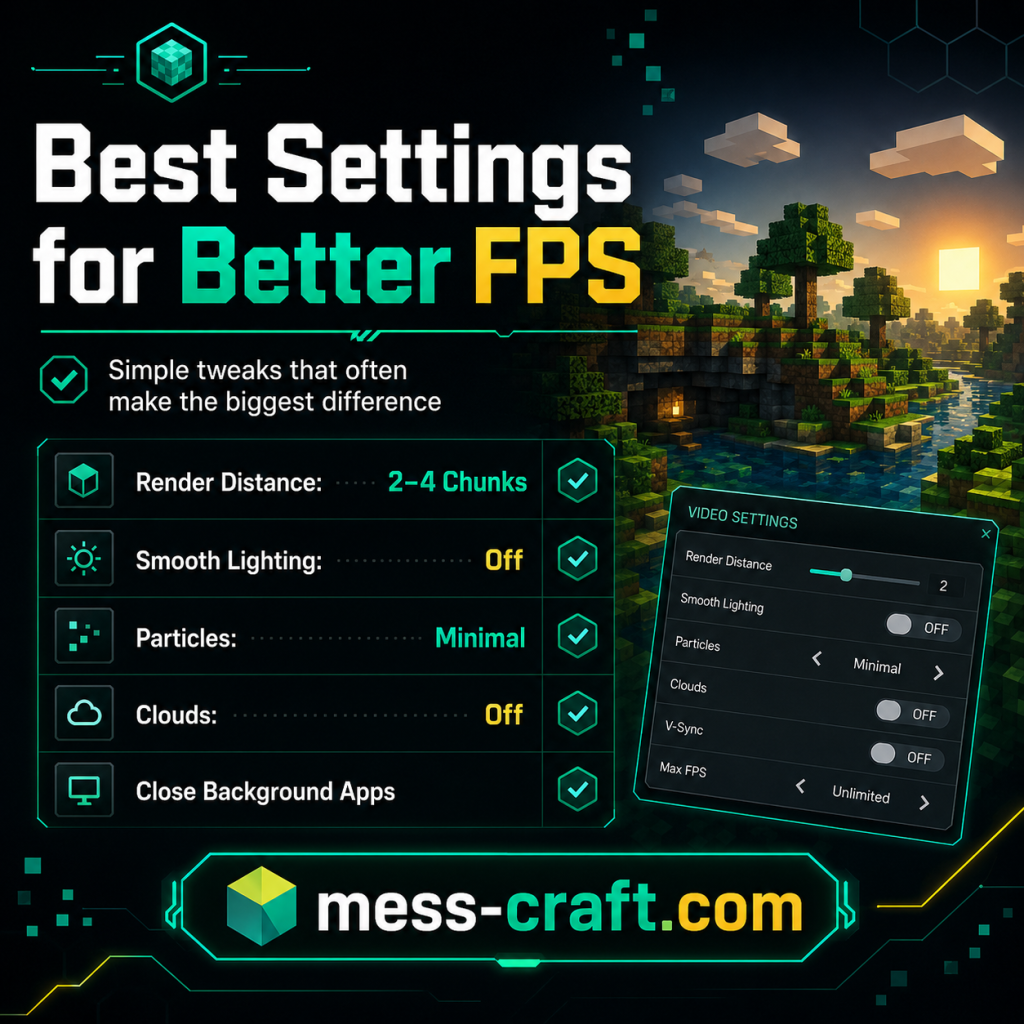
Render Distance
This is usually the biggest FPS killer. Lower it first. A shorter render distance means the game loads fewer chunks around you, which reduces pressure on your device.
Try:
- Low-end device: 2–4 chunks
- Average laptop: 4–6 chunks
- Better device: 6–8 chunks
Do not max it out unless your FPS is already stable.
Graphics Quality
Switch from fancy visuals to faster settings where available. Smooth visuals look nice, but performance matters more if the game is stuttering.
Particles and Clouds
Turn particles down and disable clouds if the option exists. These are small visual details, but they can still affect FPS on weak hardware.
Smooth Lighting
Smooth lighting can make blocks look better, but it costs performance. Turn it off or lower it if your FPS keeps dipping.
4. Reduce Lag in Multiplayer
FPS drop and multiplayer lag are not always the same problem.
FPS drop means your device is struggling to render the game smoothly. Network lag means your connection to the server is unstable, causing delayed hits, rubber-banding, block lag, or teleport-like movement.
To reduce multiplayer lag:
- Use a stable Wi-Fi connection
- Move closer to the router
- Stop streaming or downloading while playing
- Avoid VPNs unless needed
- Try a different server if one server feels unusually slow
- Play during lower-traffic times if the server is crowded
Intel’s Minecraft performance guide separates FPS improvement from network lag reduction, noting that smoother gameplay depends on both device performance and connection quality. Messcraft is no different.
5. Keep the World Simple
Large builds, many mobs, redstone machines, flowing water, item drops, and loaded chunks can create lag. If your FPS drops only in one area, the issue may be the world itself rather than your device.
Try this:
- Move away from crowded bases
- Remove excessive mobs
- Pick up dropped items
- Reduce active redstone machines
- Avoid huge farms on low-end devices
- Test performance in a fresh world
If a new world runs smoothly but your main world lags, the problem is likely too many active objects or complex builds.
6. Check Hardware Acceleration
Hardware acceleration lets your browser use the GPU instead of relying only on the CPU. For many browser games, this improves performance. But on some older devices, it can cause glitches.
In your browser settings, search for hardware acceleration.
Try turning it on first. Restart the browser and test Messcraft. If performance gets worse, turn it off and test again.
There is no universal answer here. The best setting depends on your device and graphics driver.
7. Update Your Device and Graphics Drivers
If you are on Windows, outdated graphics drivers can cause stutters, black screens, or poor FPS in browser games. Update your GPU drivers from the official manufacturer app or Windows Update.
For Chromebooks:
- Update ChromeOS
- Restart after updating
- Remove unnecessary apps/extensions
- Keep storage from getting too full
For phones or tablets:
- Update the browser
- Close background apps
- Keep battery saver off while playing
- Avoid playing while the device is overheating
8. Avoid Battery Saver Mode
Battery saver reduces performance to extend battery life. That is useful for schoolwork, but bad for gaming.
If Messcraft FPS suddenly drops on a laptop, Chromebook, or phone, check whether battery saver is enabled.
For better performance:
- Plug in the device
- Turn off battery saver
- Use performance mode if available
- Keep the device cool
Heat also matters. If your laptop or phone gets hot, it may slow itself down automatically to prevent overheating.
9. Clear Browser Cache Only When Needed
Clearing cache is not a magic FPS fix, but it can help if Messcraft loads incorrectly, freezes at startup, or feels broken after an update.
Do this only when needed because clearing site data may remove saved browser data for some games.
A safer order:
- Refresh the page
- Restart the browser
- Try another browser
- Clear cache/site data if the issue remains
10. Use the Right Version for Your Device
Some Messcraft pages may offer different Minecraft versions. The official MessCraft site lists browser-playable options including 1.5.2, 1.8.8, and 1.12.2. Newer or heavier versions may need more resources.
If your device is weak, try the lighter version first. Older versions often run better because they have fewer features, simpler mechanics, and lower performance demands.

Quick Messcraft Lag Fix Checklist
Use this order when you want the fastest result:
- Close extra tabs and apps
- Restart the browser
- Lower render distance
- Turn off clouds, particles, and smooth lighting
- Disable heavy browser extensions
- Check hardware acceleration
- Move closer to the Wi-Fi router
- Try another Messcraft version
- Test a fresh world
- Restart the device
This checklist solves most common FPS and lag issues without needing advanced tools.
Conclusion
The best way to fix lag and FPS drop in Messcraft is to reduce the load on your browser, lower demanding video settings, and make sure your internet connection is stable. Start with render distance, background tabs, and browser performance before trying more advanced fixes.
Messcraft runs in the browser, so small changes can make a big difference. A cleaner browser, lighter settings, and stable Wi-Fi can turn choppy gameplay into a much smoother session.
FAQ Section
Why is Messcraft so laggy?
Messcraft may lag because your browser is using too much memory, your render distance is too high, your device is low-powered, or your internet connection is unstable during multiplayer.
How do I increase FPS in Messcraft?
Lower render distance, turn off clouds and particles, close other tabs, disable unnecessary extensions, and use a lighter game version if available.
Is Messcraft lag caused by Wi-Fi?
Sometimes. Wi-Fi usually causes multiplayer delay, rubber-banding, or block lag. Low FPS is usually caused by your device or browser struggling to render the game.
Does clearing cache fix Messcraft lag?
It can help if the game loads badly or freezes, but it is not the first fix for low FPS. Try lowering settings and restarting the browser first.
What is the best render distance for Messcraft?
For low-end devices, 2–4 chunks is a good starting point. Increase slowly only if FPS stays stable.
Can extensions make Messcraft lag?
Yes. Some extensions use memory, block scripts, or interfere with browser performance. Try disabling unnecessary extensions while playing.