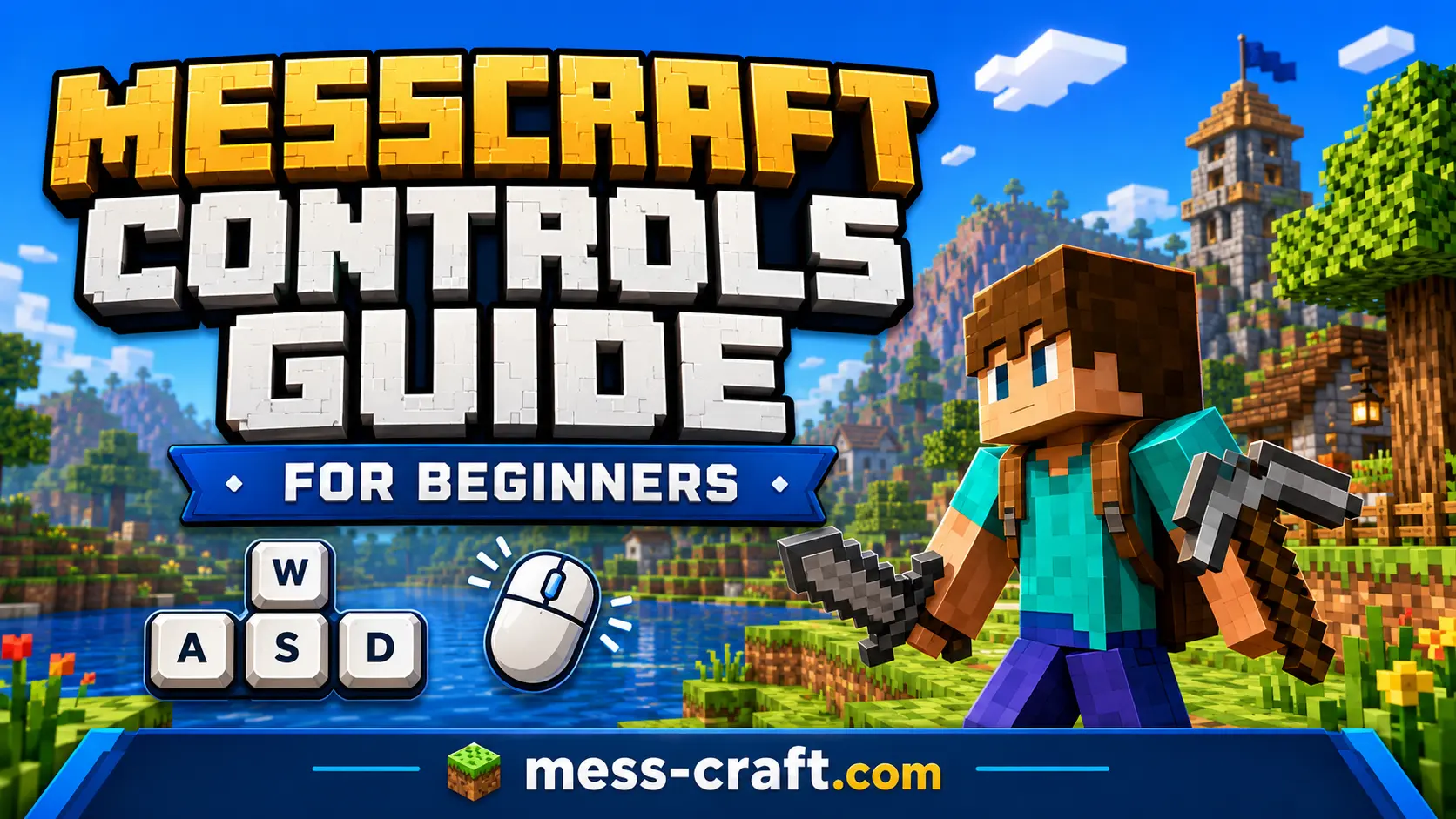
Messcraft Controls Guide for Beginners (Easy Setup & Tips)
If you’ve ever struggled with clunky movement or confusing key bindings in Minecraft, you’re not alone. Controls are the foundation of how you interact with the game—and when they’re off, everything feels harder than it should.
That’s where Messcraft Controls come in.
Whether you’re playing on mobile or PC, understanding and optimizing your controls can completely change how the game feels. This guide walks you through everything you need to know—from basic setup to smart customization—so you can play comfortably and confidently.
What Are Messcraft Controls?
At its core, Messcraft Controls refers to how players manage movement, interaction, and gameplay inputs in Minecraft—especially when using custom layouts, mods, or optimized settings.
Instead of sticking with default configurations, Messcraft-style controls focus on:
- Simplicity
- Efficiency
- Faster reactions
- Better control over movement and actions
For beginners, this means fewer mistakes, smoother gameplay, and more enjoyment overall.
Why Controls Matter More Than You Think
Most players focus on graphics, mods, or builds—but controls quietly shape your entire experience.
Poor control setup leads to:
- Missed jumps
- Slow reactions in combat
- Frustrating inventory navigation
A well-optimized control layout, on the other hand:
- Improves precision
- Reduces hand strain
- Makes gameplay feel natural
Think of it like adjusting your steering wheel before driving—it’s essential.
Messcraft Controls for Minecraft PE (Mobile)
Mobile players often face the biggest challenges with controls. Small screens and touch inputs can feel limiting—but with the right setup, they become surprisingly powerful.
Default vs Custom Controls
Minecraft PE comes with default touch controls, but they aren’t always ideal.
Customizing them allows you to:
- Resize buttons
- Move controls to comfortable positions
- Adjust sensitivity
Recommended Setup for Beginners
Here’s a simple layout to start with:
- Movement joystick: Bottom-left corner
- Jump button: Slightly above movement
- Attack/use button: Right side, thumb-friendly
- Inventory: Easy reach but not intrusive
Tips to Improve Mobile Controls
- Increase button size slightly for accuracy
- Lower sensitivity if your camera feels too fast
- Avoid clutter—fewer buttons = better focus
Many players overlook how much smoother controls Minecraft PE can feel with just a few tweaks.
Messcraft Controls for Minecraft PC
PC players have more flexibility—and more responsibility—when it comes to controls.
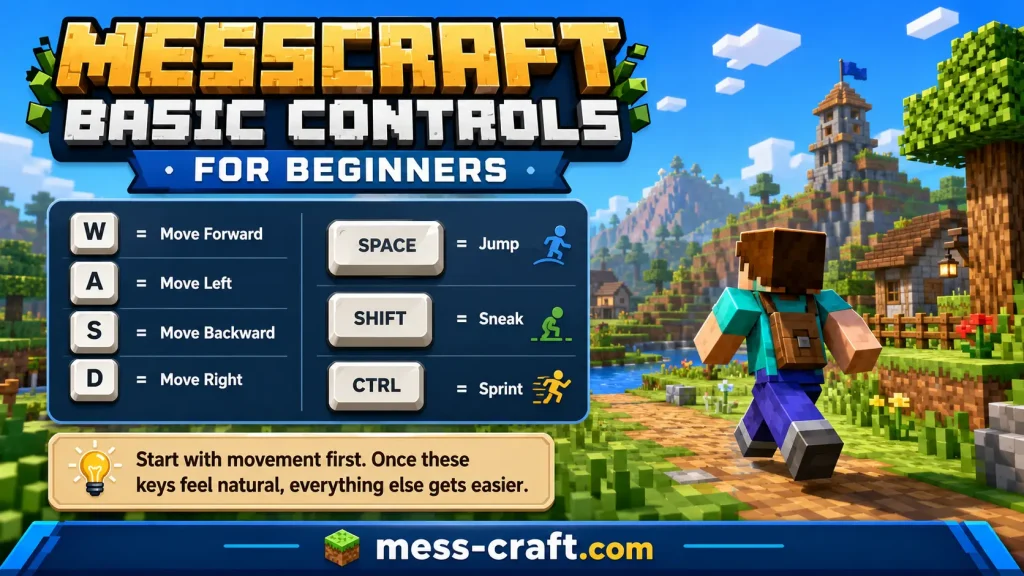
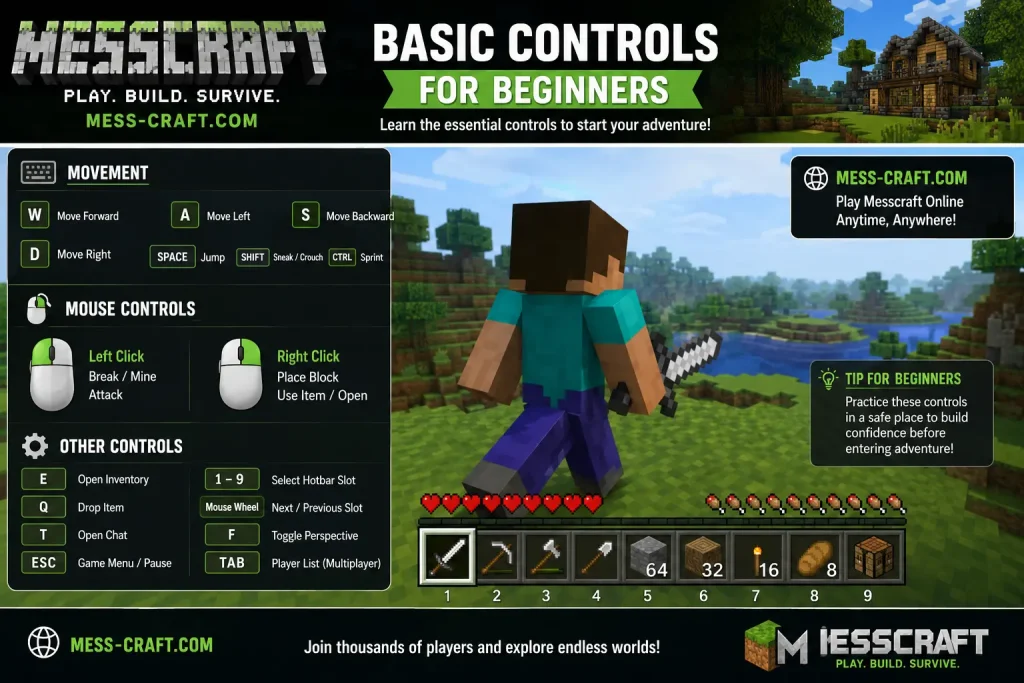
Default Keyboard Controls
The standard layout includes:
- W, A, S, D for movement
- Space for jump
- Shift for sneak
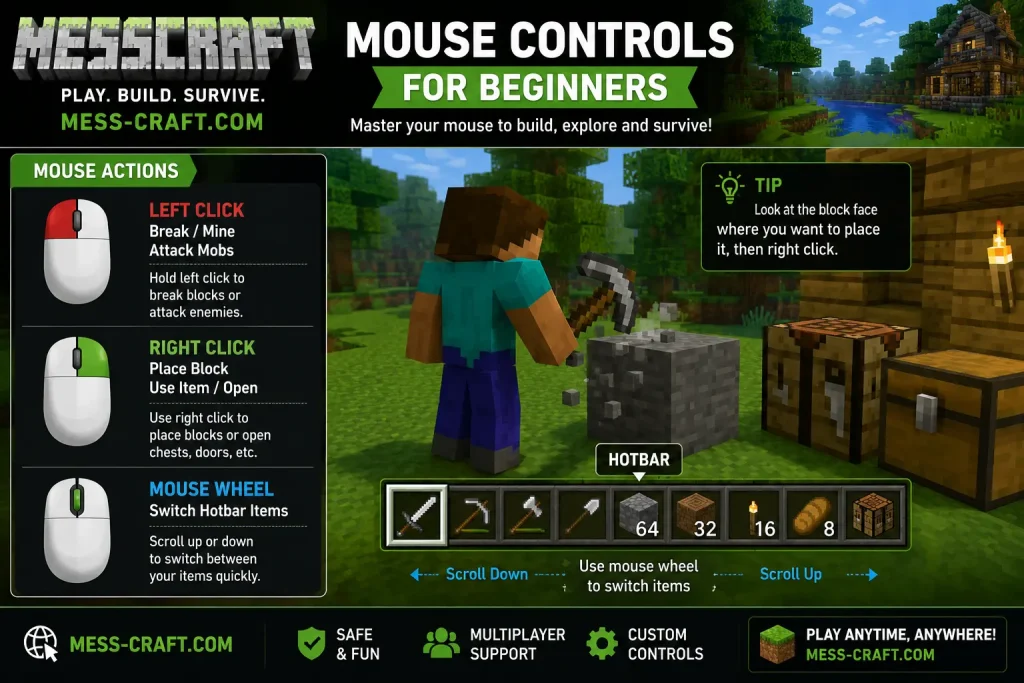
- Mouse for camera and actions
It works well, but it’s not perfect for everyone.
Customizing Your Keybinds
Custom keybinds are where Messcraft Controls really shine.
Consider:
- Assigning sprint to a more accessible key
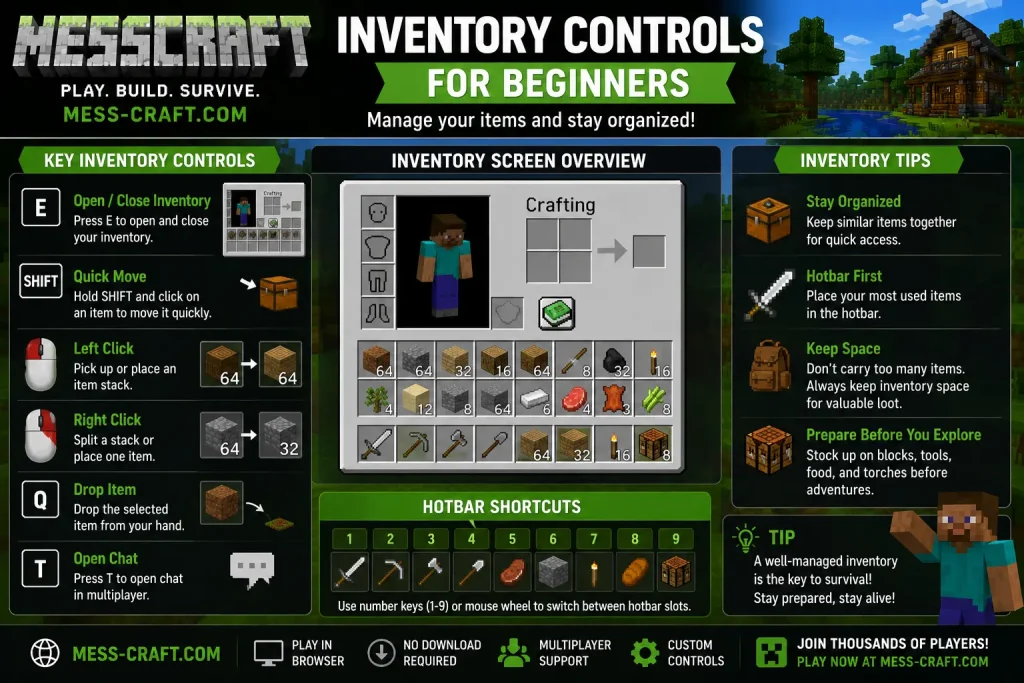
- Moving inventory closer to your movement keys
- Setting hotbar slots for faster switching
Mouse Settings Matter Too
Don’t ignore your mouse configuration.
Adjust:
- Sensitivity for better aiming
- Invert settings (if needed)
- DPI (if your mouse allows it)
For many players, refining controls Minecraft PC is the fastest way to improve gameplay.
How to Customize Messcraft Controls Step-by-Step
Here’s a simple process you can follow regardless of device:
Step 1: Open Settings
Go to the controls or input section in Minecraft.
Step 2: Test Defaults
Play briefly using default settings to understand what feels off.
Step 3: Adjust Layout or Keybinds
- Move buttons (mobile)
- Reassign keys (PC)
Step 4: Fine-Tune Sensitivity
Find a balance between speed and accuracy.
Step 5: Practice
Play for 10–15 minutes and refine further.
Small changes make a big difference.
Common Mistakes Beginners Make
Even with good intentions, beginners often run into the same issues:
Overcomplicating Controls
Adding too many buttons or keybinds creates confusion.
Fix: Keep it simple.
Ignoring Comfort
If your hands feel strained, your setup needs adjustment.
Fix: Prioritize comfort over copying others.
Not Testing Changes
Many players tweak settings but don’t test them properly.
Fix: Always play a short session after changes.
Advanced Tips to Improve Control Mastery
Once you’re comfortable, take things further.
Build Muscle Memory
Stick to one setup long enough to develop consistency.
Use Consistent Layouts Across Devices
If you switch between mobile and PC, try to keep controls similar.
Focus on Reaction Speed
Better controls reduce delay between thought and action.
Watch Skilled Players
Not to copy blindly—but to understand what works.
When Should You Change Your Controls?
You don’t need to constantly adjust your setup.
Consider changing controls if:
- You feel slow or inaccurate
- Your hands feel uncomfortable
- You’ve switched devices
- Your playstyle has evolved
Otherwise, consistency is more valuable than constant tweaking.
Are Messcraft Controls Worth It?
For beginners, absolutely.
You don’t need advanced skills to benefit from better controls. Even small adjustments can:
- Make gameplay smoother
- Reduce frustration
- Improve confidence
It’s one of the simplest upgrades you can make—yet one of the most impactful.
8. Conclusion
Mastering Messcraft Controls isn’t about complexity—it’s about clarity.
When your controls feel right, everything else in Minecraft becomes easier. Movement flows, combat improves, and the game becomes more enjoyable overall.
Start simple, adjust gradually, and focus on what feels natural. That’s the real key.
What are Messcraft Controls in Minecraft?
They refer to optimized or customized control setups that improve gameplay efficiency and comfort across devices.
Are Messcraft Controls better than default settings?
They can be, especially when tailored to your preferences. Default controls are a starting point, not a final solution.
How do I improve controls in Minecraft PE?
Adjust button size, layout, and sensitivity to match your hand positioning and play style.
What is the best control setup for Minecraft PC?
There’s no single best setup. The ideal configuration depends on comfort, accessibility, and how you play.
Should beginners customize controls immediately?
Yes—but keep changes small. Start with minor adjustments and refine over time.