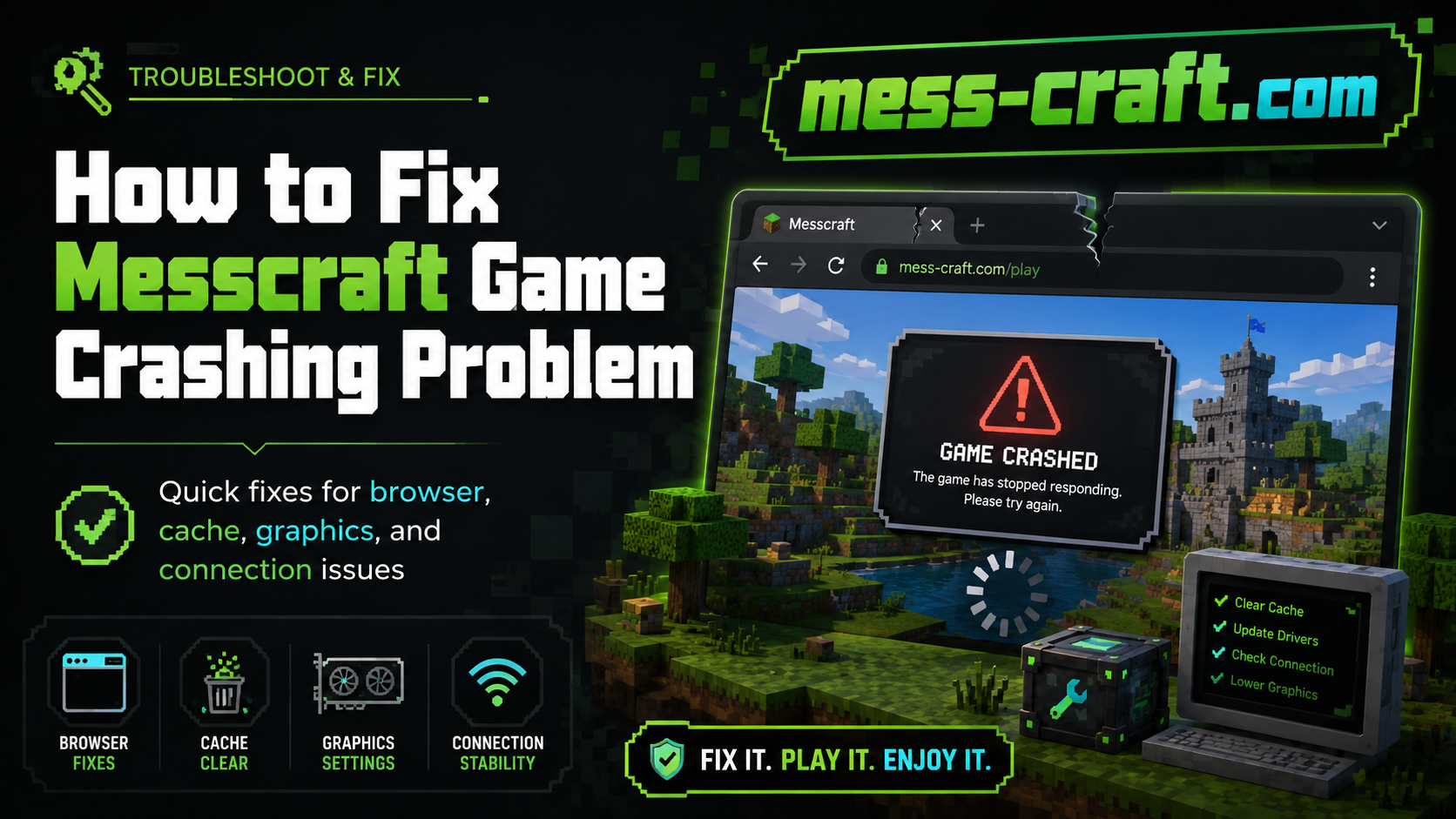
How to Fix Messcraft Game Crashing Problem
Messcraft crashing right when you are about to play is frustrating, especially because it is supposed to run directly in the browser without a heavy installation. Messcraft is commonly described as a browser-based Minecraft-style experience, with versions such as 1.5.2, 1.8.8, and 1.12.2 available on some Messcraft pages.
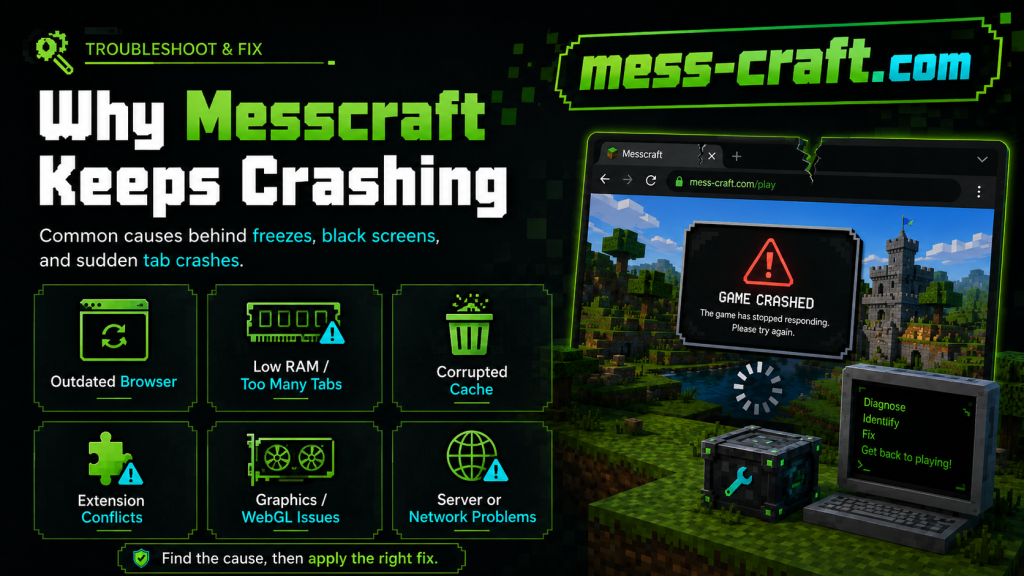
The good news: most Messcraft crashing problems are not permanent. They usually come from browser cache errors, weak device resources, blocked scripts, unstable internet, overloaded tabs, or compatibility issues with the selected game version.
This guide shows you How to Fix Messcraft Game Crashing Problem step by step, starting with the easiest fixes.
How to Fix Messcraft Game Crashing Problem Quickly
Start with these fast fixes before changing advanced settings.
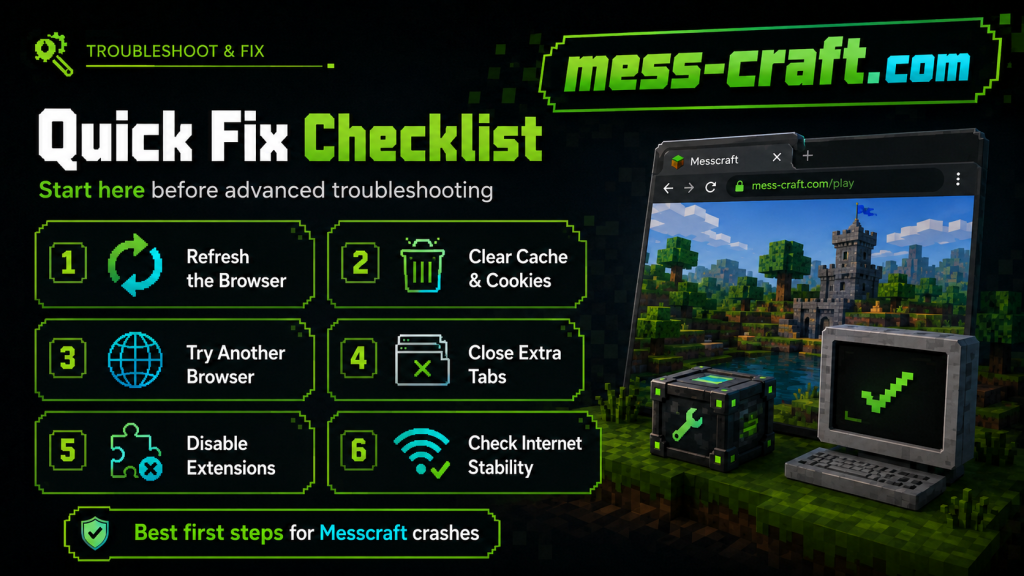
1. Refresh the Page and Restart the Browser
If Messcraft crashes once, do not jump straight to reinstalling anything. Since Messcraft runs inside a browser, a temporary loading error can break the session.
Close the game tab, reopen the site, and launch the game again. If that fails, fully close your browser and open it again.
This helps when:
- The game freezes on loading
- The screen turns black
- Controls stop responding
- Multiplayer fails to connect
- The tab crashes suddenly
2. Clear Browser Cache and Cookies
Old cache files can conflict with new game files. This is one of the most common reasons browser games crash after working fine earlier.
To fix it:
- Open your browser settings.
- Go to privacy or browsing data.
- Clear cached images and files.
- Clear cookies for the Messcraft site if needed.
- Restart the browser.
After clearing cache, reload Messcraft and choose the version again.
3. Try a Different Browser
If Messcraft keeps crashing in Chrome, test it in Edge, Firefox, Brave, or another updated browser. Browser-based games depend heavily on JavaScript, WebGL, memory handling, and graphics support.
A different browser can help when:
- One browser blocks game scripts
- WebGL is not working properly
- Extensions interfere with gameplay
- The game crashes only after loading the world
For Chromebook users, Messcraft pages often mention browser compatibility, including Chromebook support.
Check Your Device Performance
Messcraft may be lighter than a full installed game, but it still needs enough memory and processing power to load worlds smoothly.
4. Close Extra Tabs and Background Apps
Too many open tabs can eat RAM. Browser games are especially sensitive to this because the game, graphics, audio, and multiplayer connection all run inside the same browser environment.
Close:
- YouTube tabs
- Streaming apps
- Screen recorders
- Other games
- Heavy websites
- Unused browser windows
Then reopen Messcraft in a fresh tab.
5. Lower the Game Load
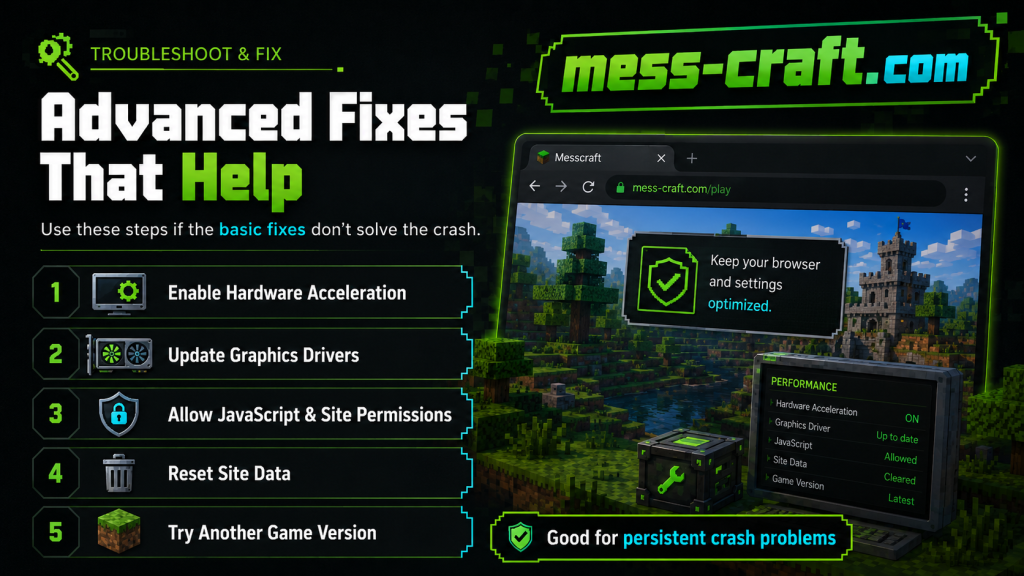
If Messcraft gives you multiple versions or clients, try a lighter or older version. Some Messcraft pages show different playable versions, including newer and older builds.
If one version crashes, switch to another. For example, if a newer version feels unstable, try an older one. If the performance-focused option is available, choose that first.
This is useful when the game crashes after:
- Entering a world
- Joining multiplayer
- Moving around for a few seconds
- Loading chunks
- Changing texture packs
Fix Browser and Graphics Issues
6. Enable Hardware Acceleration
Hardware acceleration lets your browser use the device’s graphics hardware instead of relying only on the CPU. For 3D browser games, this can improve stability.
In Chrome or Edge:
- Open browser settings.
- Search for “hardware acceleration.”
- Turn it on.
- Restart the browser.
If it is already on and Messcraft still crashes, try turning it off once. Some older devices behave better without it.
7. Update Your Browser
An outdated browser may not handle modern web graphics correctly. Messcraft depends on browser features, so updates matter.
Update your browser, restart it, and relaunch the game.
Also check whether your device has pending system updates. On Windows, graphics and system updates can help reduce crashes in games generally, especially when crashes relate to display drivers or performance issues. Microsoft’s Minecraft troubleshooting guidance also points users toward repair, update, and system-related fixes for launcher freezing or crashing problems.
8. Update Graphics Drivers on PC
If you are playing on Windows and Messcraft keeps crashing, your graphics driver may be outdated or unstable.
Update drivers from:
- Windows Update
- NVIDIA GeForce Experience
- AMD Software
- Intel Driver & Support Assistant
- Your laptop manufacturer’s support page
This is especially important if other browser games, Minecraft-style games, or WebGL games also crash.
Fix Internet and Multiplayer Crashes
9. Check Your Internet Connection
If Messcraft crashes mostly in multiplayer, the problem may be connection stability rather than the game itself.
Try this:
- Restart your router
- Move closer to Wi-Fi
- Use a wired connection if possible
- Turn off VPN temporarily
- Stop downloads in the background
- Test single-player mode
If single-player works but multiplayer crashes, the issue may be server load, network delay, or a blocked connection.
10. Disable VPN, Proxy, or Strict Firewall Settings
Some VPNs and school/work networks block game connections. Messcraft is often used as a browser-play option, including on devices like Chromebooks, but restricted networks can still interfere with scripts, assets, or multiplayer servers.
Try another network if available. If the game works on mobile hotspot but not your main Wi-Fi, the network is likely the issue.
Remove Extension Conflicts
11. Turn Off Browser Extensions
Ad blockers, script blockers, privacy extensions, school filters, and download managers can break browser games.
Disable extensions temporarily, especially:
- Ad blockers
- JavaScript blockers
- VPN extensions
- Privacy shields
- Dark mode extensions
- Screen recorders
Then reload Messcraft.
A fast way to test this is opening the game in Incognito or Private Mode. If it works there, an extension is probably causing the crash.
Fix Black Screen, Freezing, or Loading Errors
12. Allow JavaScript and Site Permissions
Messcraft needs browser scripts to run. If JavaScript is blocked, the game may crash, show a blank page, or stop at loading.
Check your browser settings and make sure JavaScript is allowed for the site.
Also allow:
- WebGL
- Sound
- Pop-ups only if the game needs them
- Cookies for login or saved settings
13. Reset Site Data
If clearing full browser cache feels too much, reset only the Messcraft site data.
In most browsers, click the lock icon near the website address, open site settings, and clear site data. Then reload the page.
This can fix broken saves, corrupted local files, or stuck loading states.
When the Problem Is Not on Your Side
Sometimes Messcraft crashes because the site, server, or specific version is having problems. Browser-based games can break after updates, server changes, or temporary hosting issues.
You may be dealing with a site-side problem if:
- The game crashes on multiple devices
- Different browsers show the same issue
- Your internet works fine elsewhere
- Other players report the same crash
- Only one Messcraft version fails
In that case, try another available version, wait for the site to stabilize, or use a mirror only if it is safe and trusted.
Conclusion
The fastest way to fix Messcraft crashing is to clear your browser cache, restart the browser, close extra tabs, update your browser, and test another game version. If the crash continues, check hardware acceleration, graphics drivers, extensions, internet stability, and site permissions.
Most Messcraft crashing problems come from the browser or device environment, not from anything complicated. Work through the fixes in order, and you’ll usually find the cause without wasting time.
FAQ Section
Why does Messcraft keep crashing on my browser?
Messcraft may crash because of old cache files, browser extensions, low memory, disabled JavaScript, WebGL issues, or an unstable internet connection.
Does Messcraft need a download?
Messcraft is commonly presented as a browser-based game that can run without a download, depending on the site or version you use.
Why does Messcraft crash on Chromebook?
On Chromebook, crashes often happen because of low RAM, too many open tabs, restricted school settings, blocked scripts, or browser cache problems.
Which browser is best for Messcraft?
Chrome, Edge, Firefox, and Brave can all work, but performance depends on your device. If Messcraft crashes in one browser, testing another browser is a smart first step.
Why does Messcraft crash in multiplayer only?
Multiplayer crashes may be caused by weak Wi-Fi, VPN interference, server issues, blocked network connections, or high latency.
Can clearing cache delete my Messcraft progress?
It may remove local browser data, including saved settings or local worlds, depending on how the site stores progress. Try clearing only cached files first if you want to avoid removing cookies or site data.