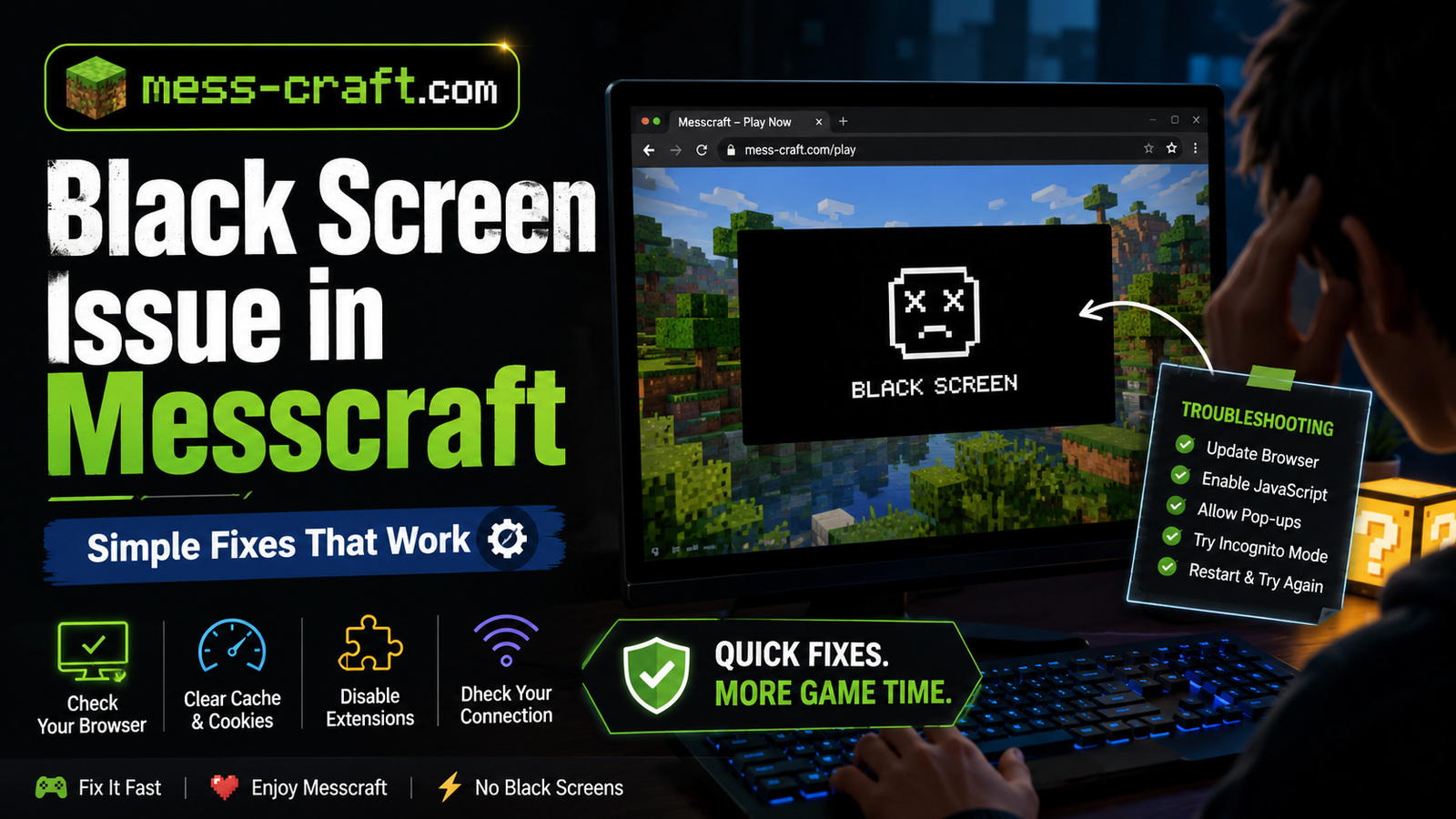
Black Screen Issue in Messcraft: Simple Fixes That Work
A black screen in Messcraft is frustrating because the game usually loads directly in your browser, so you expect it to start without extra setup. One moment you click play, and the next you are stuck staring at a blank screen with no clear error message.
The good news: this issue is usually caused by your browser, cache, graphics settings, extensions, or network restrictions—not necessarily the game itself.
Messcraft is commonly played as a browser-based Minecraft-style experience, with versions that work on desktop, mobile, tablet, and Chromebook without a traditional download. Because it runs inside the browser, small conflicts can stop the game window from rendering properly.
Below is a clear, practical guide to fixing the Black Screen Issue in Messcraft (Solution) without wasting time on random guesses.
What Causes the Black Screen Issue in Messcraft?
The black screen usually appears when the browser loads the game page but fails to display the actual game canvas. In simple words, the page opens, but the game does not visually render.
Common causes include:
- Corrupted browser cache
- Outdated browser version
- Disabled hardware acceleration
- Browser extensions blocking scripts
- Weak or unstable internet
- School, office, or network restrictions
- Unsupported browser settings
- Temporary server or page loading issue
Since Messcraft runs in a browser and supports online play without installation, the browser environment matters a lot.
Black Screen Issue in Messcraft (Solution): Step-by-Step Fixes
1. Refresh the Page Properly
Start with the simplest fix. A normal refresh may not be enough if the browser has cached a broken version of the page.
Try this:
- Press Ctrl + F5 on Windows or Chromebook
- Press Command + Shift + R on Mac
- Close the tab and open Messcraft again
A hard refresh forces the browser to reload the game files instead of using older cached data.
2. Clear Browser Cache and Cookies
Messcraft may show a black screen if your browser saved old or broken game files. Clearing cache often fixes loading problems in browser games.
In Chrome:
- Open Settings
- Go to Privacy and security
- Click Clear browsing data
- Select Cached images and files
- Clear the data
- Restart the browser
You do not always need to clear passwords or autofill data. Cache and cookies are usually enough.
3. Try a Different Browser
If Messcraft is not loading in one browser, test it in another. For example:
- Chrome
- Edge
- Firefox
- Brave
Browser games can behave differently depending on how each browser handles scripts, WebGL, storage, and graphics acceleration.
If Messcraft works in another browser, the issue is likely with your original browser settings, extensions, or cache.
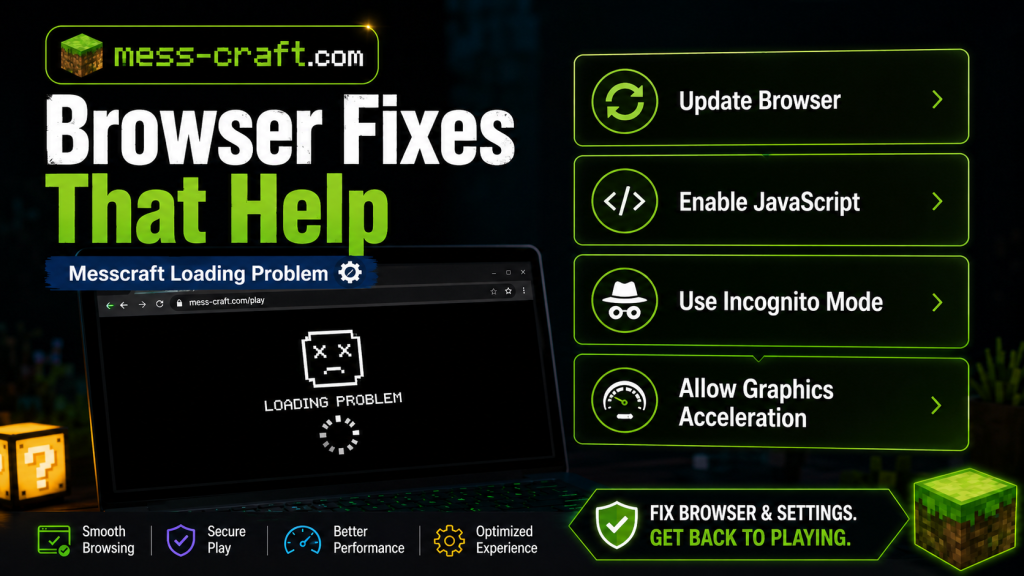
4. Enable Hardware Acceleration
Hardware acceleration lets your browser use your device’s graphics power to display games more smoothly. If it is turned off, Messcraft may load slowly, freeze, or show a black screen.
In Chrome:
- Open Settings
- Search for Hardware acceleration
- Turn on Use graphics acceleration when available
- Restart Chrome
In Edge, the setting is similar and appears under system or performance settings.
This fix is especially useful for Chromebook, laptop, and low-end PC users.
5. Disable Extensions That Block Scripts
Ad blockers, privacy extensions, school filters, script blockers, and VPN extensions can stop Messcraft from loading correctly.
Try this:
- Open Messcraft in Incognito Mode
- Disable extensions temporarily
- Reload the game
- Turn extensions back on one by one to find the problem
Pay attention to extensions that block JavaScript, trackers, pop-ups, ads, or unknown scripts. Browser games often need scripts to load assets, controls, multiplayer features, and the game screen.
6. Check If JavaScript Is Enabled
Messcraft needs browser scripting to run. If JavaScript is disabled, the game may not load at all or may show a blank screen.
In Chrome:
- Go to Settings
- Open Privacy and security
- Select Site settings
- Click JavaScript
- Make sure sites are allowed to use JavaScript
After enabling it, reload the Messcraft page.
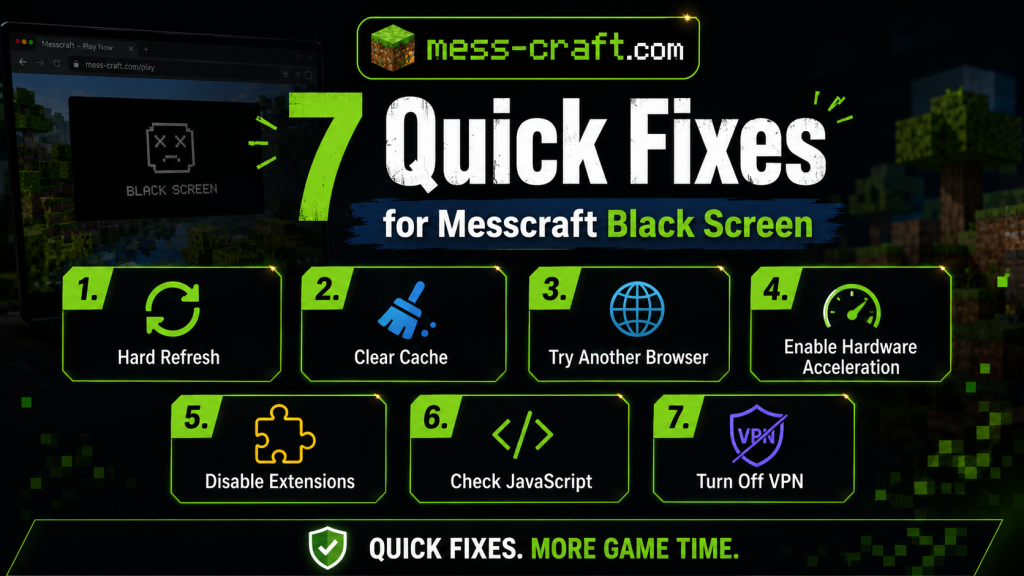
7. Turn Off VPN or Proxy Temporarily
A VPN or proxy can interfere with game servers, scripts, or multiplayer connections. If the black screen appears after connecting to a VPN, switch it off and try again.
This is also helpful if:
- The page loads slowly
- Multiplayer does not connect
- The game freezes before opening
- The screen stays black after choosing a version
If you are on a school or office network, some game-related traffic may be restricted. In that case, testing on another network can confirm whether the problem is local or network-based.
8. Update Your Browser
An outdated browser may not support the features needed to run Messcraft smoothly. Since Messcraft is browser-based, your browser version can directly affect performance and loading.
Update your browser, restart it, and try again.
For Chrome:
- Open the three-dot menu
- Go to Help
- Click About Google Chrome
- Install updates if available
- Restart the browser
9. Reduce Device Load
If your device is low on memory, the game may fail to render. This can happen on older laptops, budget phones, or Chromebooks with many tabs open.
Before launching Messcraft:
- Close unused tabs
- Exit heavy apps
- Pause downloads
- Restart your device
- Avoid running screen recorders or other games in the background
This gives your browser more resources to load the game properly.
10. Try Another Messcraft Version or Server
Some Messcraft pages offer different playable versions, such as older Minecraft-style versions or separate browser clients. Messcraft-related pages mention version options like 1.5.2, 1.8.8, and 1.12.2.
If one version shows a black screen, try another. The issue may be limited to a specific build, server, or loading route.
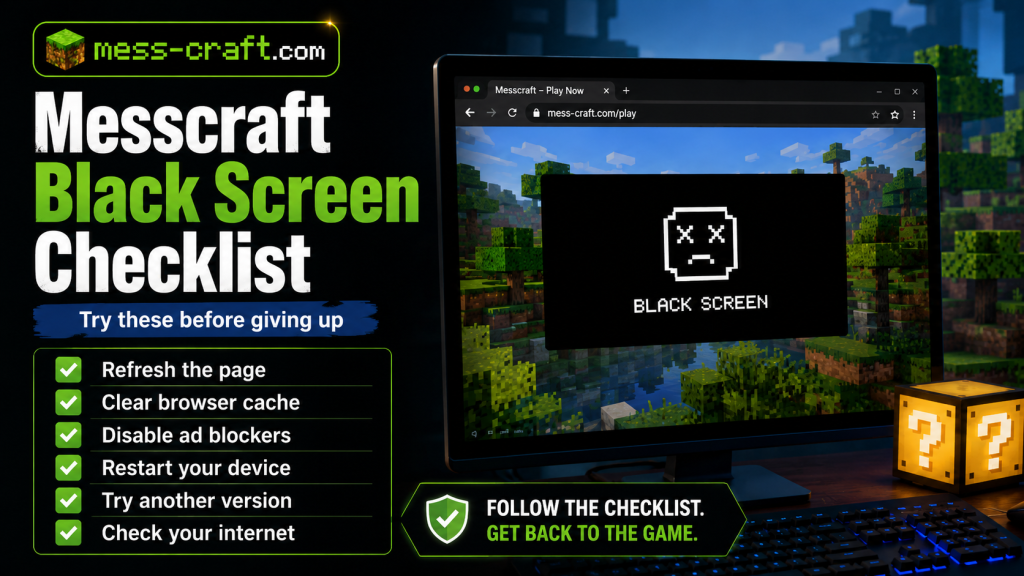
Quick Fix Checklist
Use this checklist if you want the fastest path:
- Hard refresh the page
- Clear browser cache
- Try Chrome or Edge
- Enable hardware acceleration
- Disable ad blockers or script blockers
- Check JavaScript
- Turn off VPN
- Restart your device
- Try another Messcraft version
- Test another network
Most players will fix the issue within the first five steps.
When the Problem Is Not on Your Side
Sometimes the black screen is caused by a temporary issue with the game page, server, or embedded client. If Messcraft works for other users but not for you, focus on your browser and device. If it fails everywhere, the site or version may be temporarily unavailable.
You can also check whether the page provides a support or contact option. One Messcraft-related site lists support contact details for technical or website-related questions.
Conclusion
The Black Screen Issue in Messcraft (Solution) usually comes down to browser loading problems, blocked scripts, graphics settings, cache issues, or network restrictions. Start with a hard refresh, clear your cache, disable extensions, and make sure hardware acceleration and JavaScript are enabled.
If one browser or version does not work, try another. Because Messcraft runs directly in the browser, small setting changes can make the difference between a black screen and smooth gameplay.
FAQ
Why is Messcraft showing a black screen?
Messcraft may show a black screen because of browser cache issues, disabled JavaScript, graphics acceleration problems, extensions blocking scripts, or unstable network access.
Does clearing cache fix the Messcraft black screen?
Yes, clearing cache often helps because browser games can fail when old or corrupted files are stored in the browser.
Which browser is best for Messcraft?
Chrome and Edge are usually good choices for browser-based games, but Firefox or Brave may also work. If one browser fails, try another.
Can ad blockers cause the black screen?
Yes. Some ad blockers and privacy extensions block scripts needed for the game to load. Try disabling extensions or opening the game in Incognito Mode.
Why does Messcraft work on one device but not another?
Different devices may have different browser versions, graphics settings, extensions, memory limits, or network restrictions. That can affect how the game loads.
What should I do if nothing works?
Try another browser, another network, or another Messcraft version. If the issue continues across all devices and networks, the game page or server may be temporarily unavailable.